
Sections
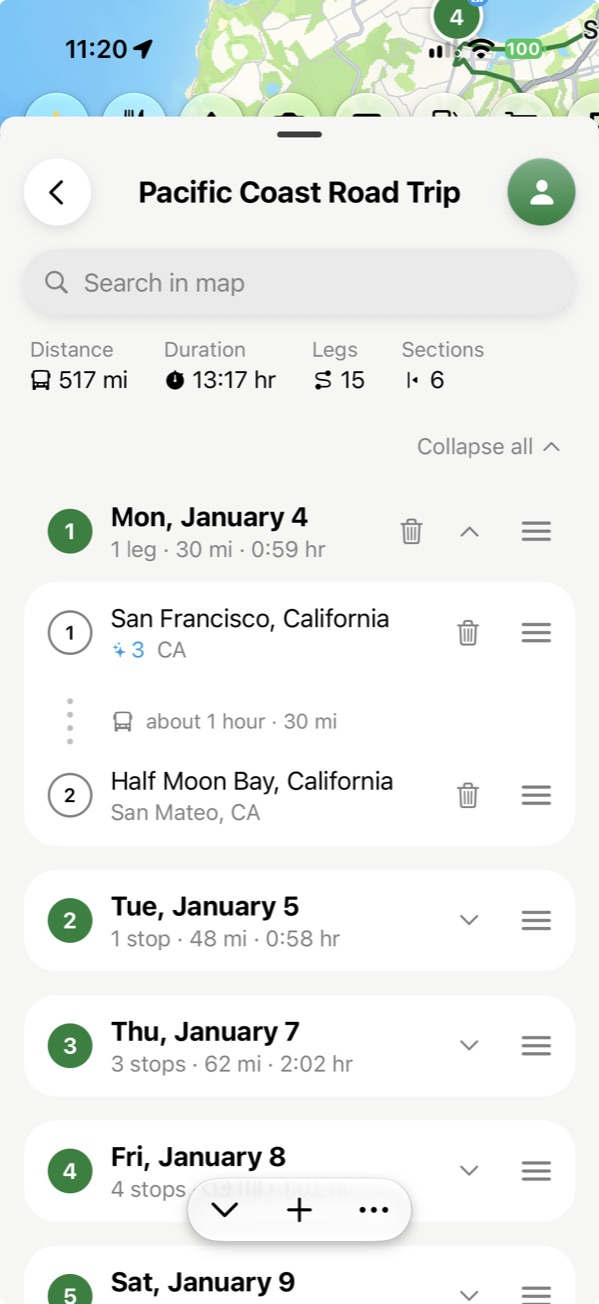
Sections group the stops of a long trip into parts — a week, a region, a leg of the journey. They’re optional, but on a route with thirty stops they’re the difference between a list and a plan.
Add a section
- Open your route as a list: tap the button with its name, or drag the sheet up
- Tap the + button at the bottom and choose Add section
- Give it a name
- Choose where it starts: Top of trip, Bottom of trip, or Add after stop to begin it at a particular point
- Tap the blue checkmark button to save
Stops below the section heading belong to that section, until the next heading starts.
What a section shows you
Each section heading carries its own totals — distance, driving time and the number of legs it contains. Collapse a section to get the long view of the trip, or use Collapse all and Expand all.
Rename, move or delete
In the list, tap a section’s heading to edit it. To delete a section, tap the bin icon on its heading. To move it, press and hold the handle on the right of the heading and drag.
Deleting a section doesn’t delete its stops; they join the section above, or sit under Stops without section.
Dates and routing
Routing preferences are set per leg, not per section — see Adjust legs and waypoints. Arrival dates are set per stop, and they’re what the Trip Journal reads to lay the trip out in order.
Still stuck? Write to support@getroadie.app.