
Highlights
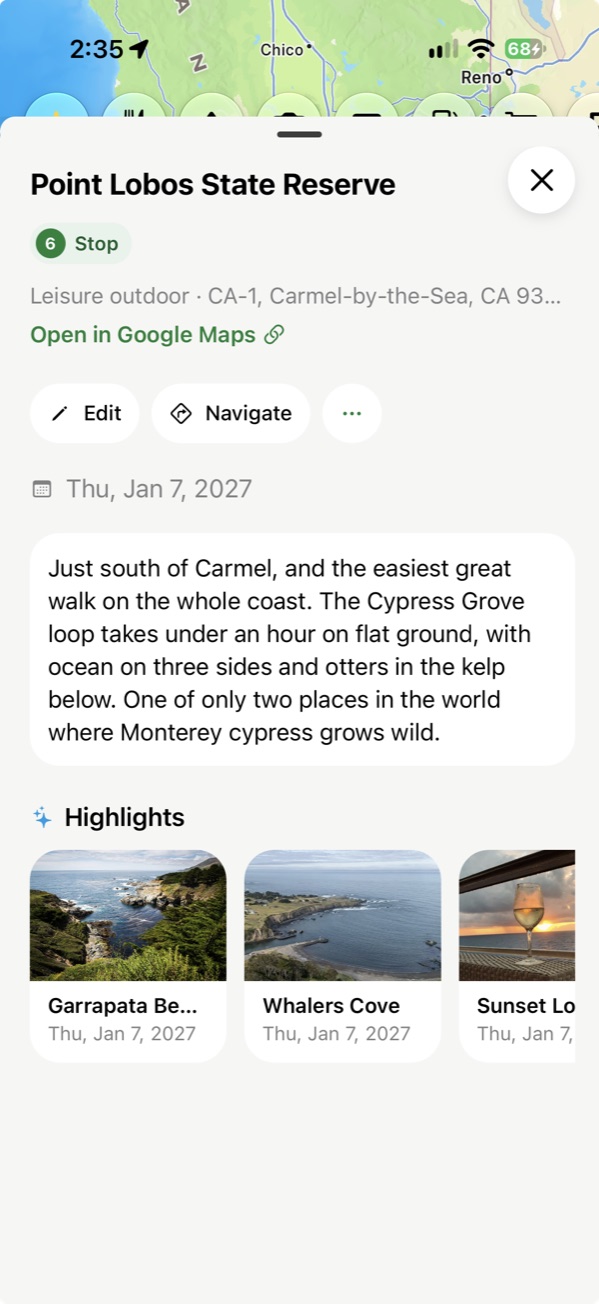
A stop says where you’ll be. Highlights say what you’ll do there — the viewpoint, the bakery, the hike someone told you about. They belong to the stop, not to the route, so adding them never changes your driving.
Add a highlight to a stop
- Tap a stop, on the map or in the list
- Under Highlights, tap Add highlight
- Choose where it comes from:
- Search or pick on the map — search for a place, or long-press a spot on the map
- Your starred places — use a place you’ve already saved
- Note without location — a reminder that doesn’t need a place, like “Book the ferry”
Add a place you’re looking at
Found something while browsing the map? Open the place, tap Add to route and choose Add to a stop. Roadie suggests the nearest stop first; pick a different one if it belongs elsewhere.
Dates, notes and photos
Open a highlight and tap Edit to give it a date and time or write a note. To add photos, tap the ⋯ button and choose Add photo. Highlights with a date appear in the right order in the Trip Journal.
Move or delete
Open the highlight’s menu and choose Move to another stop, or delete it. Deleting a highlight never deletes a starred place it was created from.
On the map
Highlights with a location show on the map as their own markers, so you can see what’s near each stop without them becoming part of the route line.
On the free plan
You can add as many highlights as you like on the free plan. Editing a highlight and adding photos to it are part of Premium.
Still stuck? Write to support@getroadie.app.