
Import and export GPX
GPX is the common format for routes. Roadie reads and writes it, so you can back routes up, move them between apps, or open one someone sent you.
Import and export are part of Premium.
Export a route
- Open your route as a list: tap the button with its name, or drag the sheet up
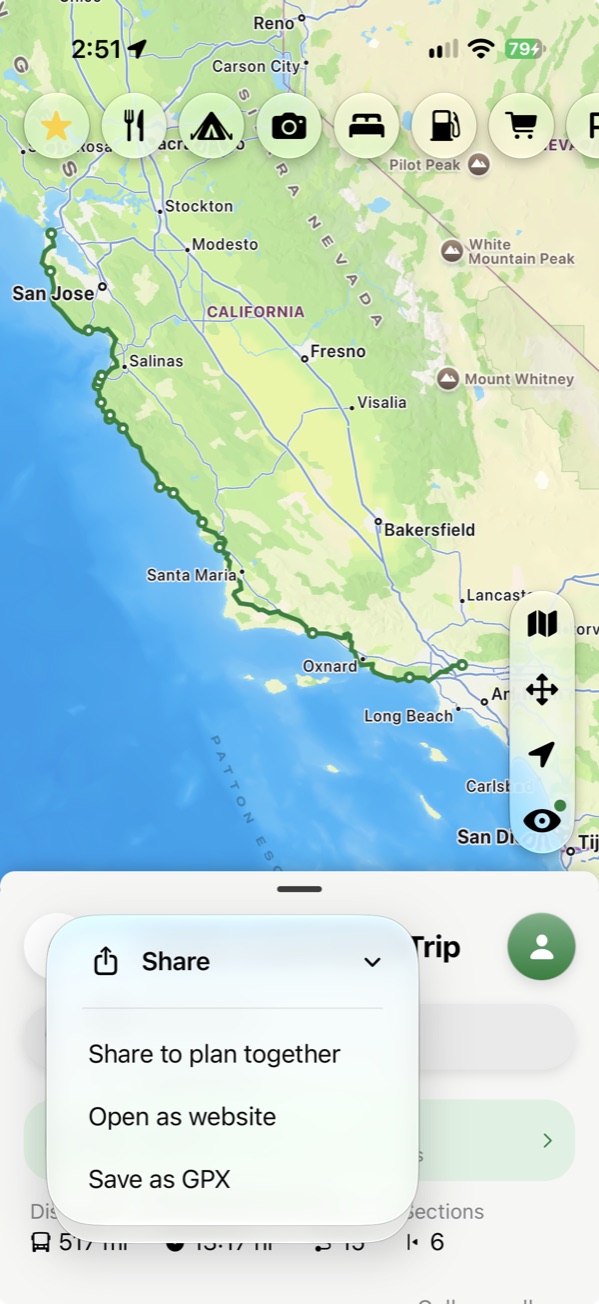
- Tap the ⋯ button at the bottom and choose Share
- Choose Save as GPX
The file contains your stops with their names and descriptions. Most mapping tools will read it, including Google My Maps.
Import a route
From inside Roadie: open your route as a list and tap the back arrow at the top left to get to the overview of your routes. There, tap the + button at the bottom, choose Import from GPX and pick the file.
From anywhere else: tap a GPX file in Files, or in a share sheet from Mail or a messaging app, and choose Roadie. It imports straight into your routes.
What imports
Roadie needs at least one valid waypoint in the file. Named waypoints become stops, keeping their names and any descriptions. Track data — a recorded GPS trace — isn’t converted into stops; Roadie plans routes rather than replaying recorded tracks.
If the file won’t import, it’s almost always that it isn’t GPX despite the extension, or that it has no waypoints.
Sharing without a file
To show someone a route without sending a file, use Share → Open as website. It opens in any browser, with your photos and notes, and needs no app.
Still stuck? Write to support@getroadie.app.