
Saved places and lists
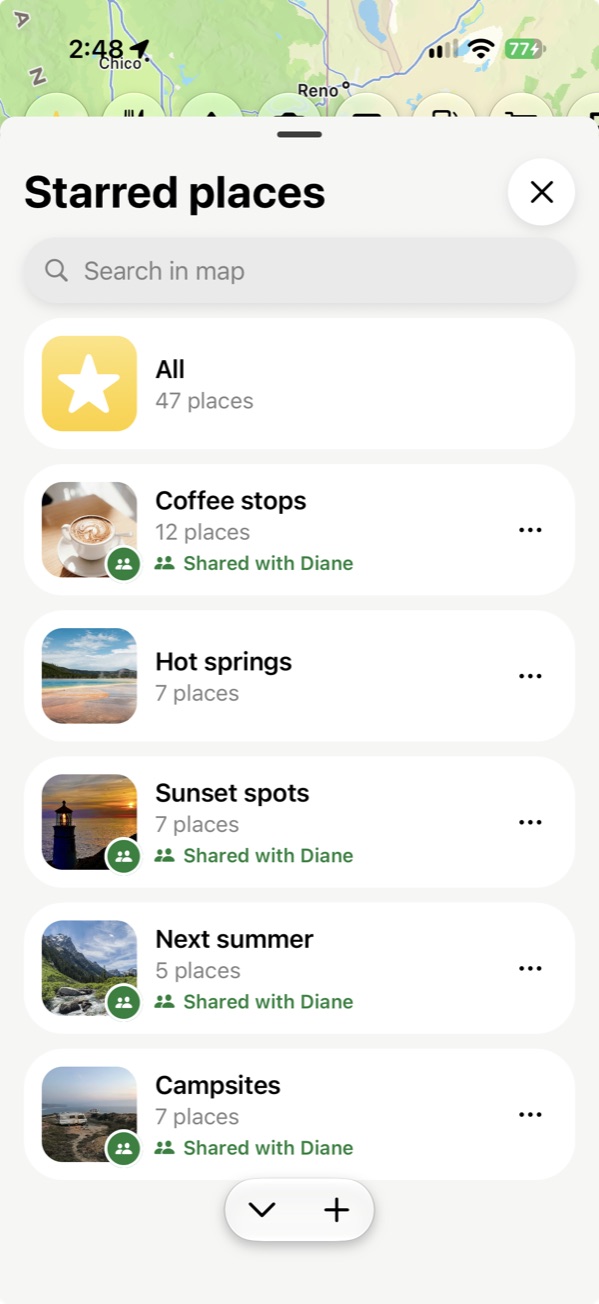
Not every place you find belongs on a route yet. Star it, and it’s saved for whenever you do want it.
Star a place
Open any place — from search, or by tapping it on the map — and tap Star. It’s saved, and it appears on the map with a star marker.
Organise them into lists
Lists are how you keep saved places straight: “Hot springs”, “Coffee stops”, “Next summer”.
- Tap the star button on the map to open Starred places. On a phone held upright it’s at the top left. In the wide layout, such as on an iPad, a phone turned sideways or in the web app, it’s on the right, below the map buttons
- Tap the + button at the bottom and give the new list a name
- Add a cover photo if you want one
To put a place in a list, open it, tap Add to list and choose. A place can be in more than one list.
Tapping a category icon on the map shows the lists that contain places of that kind.
Use a saved place in a route
Open it from the map or from a list and tap Add to route. It behaves like any other stop from there.
Share a list
Lists can be shared the same way routes can — tap the ⋯ next to a list and choose Share. Everyone you invite sees the same list and every change to it. Good for a group deciding where to stay.
Deleting
Deleting a place removes it from every list it’s in, including shared ones, so the other members lose it too. Roadie warns you and names the lists before it does.
On the free plan
Ten saved places and one list. Premium removes both limits, adds list sharing, and lets you add notes and photos to a saved place.
Still stuck? Write to support@getroadie.app.